A TECHNOLOGY & INNOVATION LABORATORY
Building Technology. Solving Problems.
Strategen Net Labs is a technology laboratory focused on software engineering, cybersecurity, networking, cloud, and innovative digital solutions.
Explore Projects About Strategen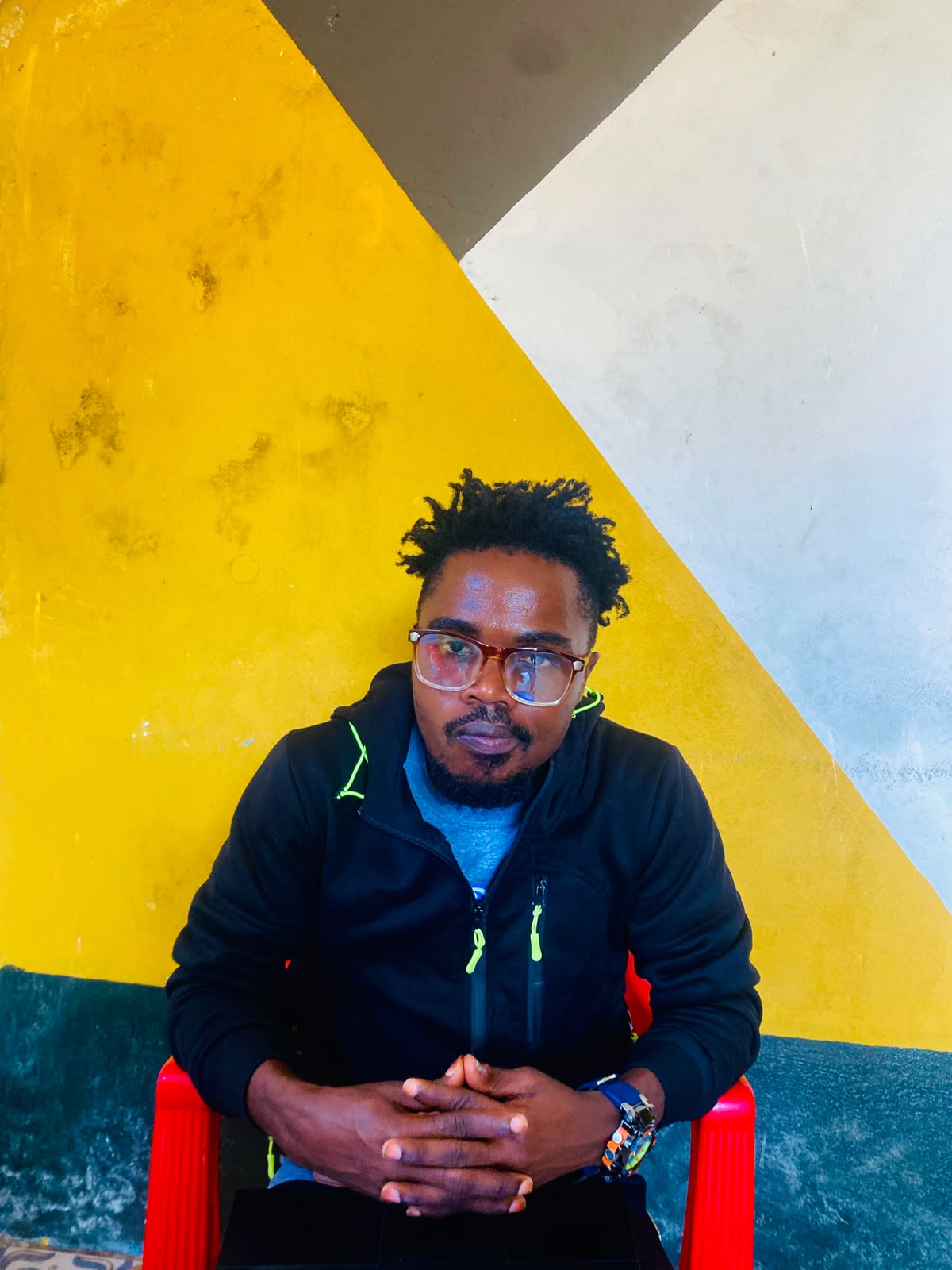
Paul S. Gee Jr.
Software Engineering Student · Developer · Technology Builder
Founder & Developer
ABOUT STRATEGEN NET LABS
Technology with purpose.
Strategen Net Labs is built around one idea: where technology should be used to solve meaningful problems.
Strategen Net Labs is a technology and innovation laboratory founded by Paul S. Gee Jr. It is a space for building, experimenting, learning, and developing practical technology solutions.
My Mission
To learn, build, experiment, and develop technology that can create practical solutions for individuals, organizations, and communities.
Software Engineering
Building practical software and digital systems.
Cybersecurity
Exploring security, protection, and ethical testing.
Networks & Infrastructure
Understanding connectivity, systems, and infrastructure.
Innovation & Research
Experimenting with emerging technologies and new ideas.
My work explores software engineering, cybersecurity, networking, cloud technologies, and emerging technologies.
THE FOUNDER
Paul S. Gee Jr.
Software Engineering Student & Developer focused on building practical technology solutions and learning through real-world projects.
Through Strategen Net Labs, I explore software engineering, databases, cybersecurity, networking, cloud technologies, and emerging technology.
FEACTURED PROJECTS
Things I'm Building
Real-world systems, experiments, and software projects developed through Strategen Net Labs.
Early Trumpet School Management System
School Management System • Software Engineering Project
🟡 IN PROGRESS
Java • SQL Server • Database Design • Software Engineering
- Student Registration & Management
- Teacher & Parent Accounts
- Attendance Management
- Grades & Assessments
- Academic Records
A school management platform designed to manage students, teachers, parents, academic records, attendance, assessments, and other school operations.
Built with Java, SQL Server, and modern software engineering principles.
Currently being developed as a real-world school management platform and portfolio project.
Discuss This ProjectTHE LABS
Explore. Build. Experiment
Dedicated spaces for learning, experimentation, research, and development.
Java Lab
Software development, object-oriented programming, and application design
Web Lab
Web applications, user interfaces, and modern web technologies
Security Lab
Cybersecurity, ethical hacking, security testing and protection
Network Lab
Networking, routing, switching, infrastructure, protocols
Cloud Lab
Cloud Computing, Vitualization, Deployment, and infrastruture
AI Lab
Artificial intelligence, automation, experimentation, and emerging technology.
Java Lab
A dedicated space for Java development, object-oriented programming, application design, and software engineering experiments.
Web Lab
A dedicated space for web development, interface design, responsive websites, and modern web technologies.
Security Lab
A dedicated space for cybersecurity learning, security testing, ethical hacking, and defensive technology experiments.
Network Lab
A dedicated space for networking, routing, switching, infrastructure design, and network technology experiments.
Cloud Lab
A dedicated space for cloud computing, virtualization, infrastructure, deployment, and modern cloud technology experiments.
AI Lab
A dedicated space for artificial intelligence, automation, experimentation, and exploration of emerging technologies.
TECHNOLOGIES
Tools I Build With
Technologies and tools I am learning and using to turn ideas into working systems.
Programming
Java · C++ · JavaScript
Software Development · Object-Oriented ProgrammingWeb Development
HTML · CSS · JavaScript
Responsive Design · User Interfaces · Web ApplicationsDatabases
SQL Server · Database Design · SQL
Data Modeling · Relational Databases · Database ManagementNetworking
Routing · Switching · Net Protocols
Network Infrastructure · TCP/IP · Network ArchitectureSecurity
Cybersecurity · Ethical Hacking · Cryptography
Security Testing · Network Security · Defensive SecurityCloud & Infrastructure
Cloud Computing · Virtualization · Infrastructure
Cloud Platforms · Virtual Machines · DeploymentMy Journey
Learning. Building. Growing
A continuous journey of learning, building projects, and developing practical technology skills.
Semester 1-2
I starting Building my foundation in programming, programming logic, object-oriented programming, and operating systems.
Semester 3-4
I then began Expandeding into databases, computer networks, software engineering, web technologies, Java, and computer architecture.
Building Real Project
I am Developing a practical systems that solve real-world problems, including the School Management System.
What's Next
Exploring cybersecurity, cloud computing, advanced software engineering, artificial intelligence, and larger technology projects.
LET'S CONNECT
If you have an idea, let's build it.
Whether you're interested in technology, collaboration, software development, or one of my projects, I'd be happy to connect.
Send Me an Email